Feature
Screenshots you can mark up, recordings with your voice
Some feedback needs a picture. Some needs you to walk through it. StiqNote does both inside the comment, so the picture stays with the note and the note stays on the page.
Free for 3 people. 14 days of Agency, no card.
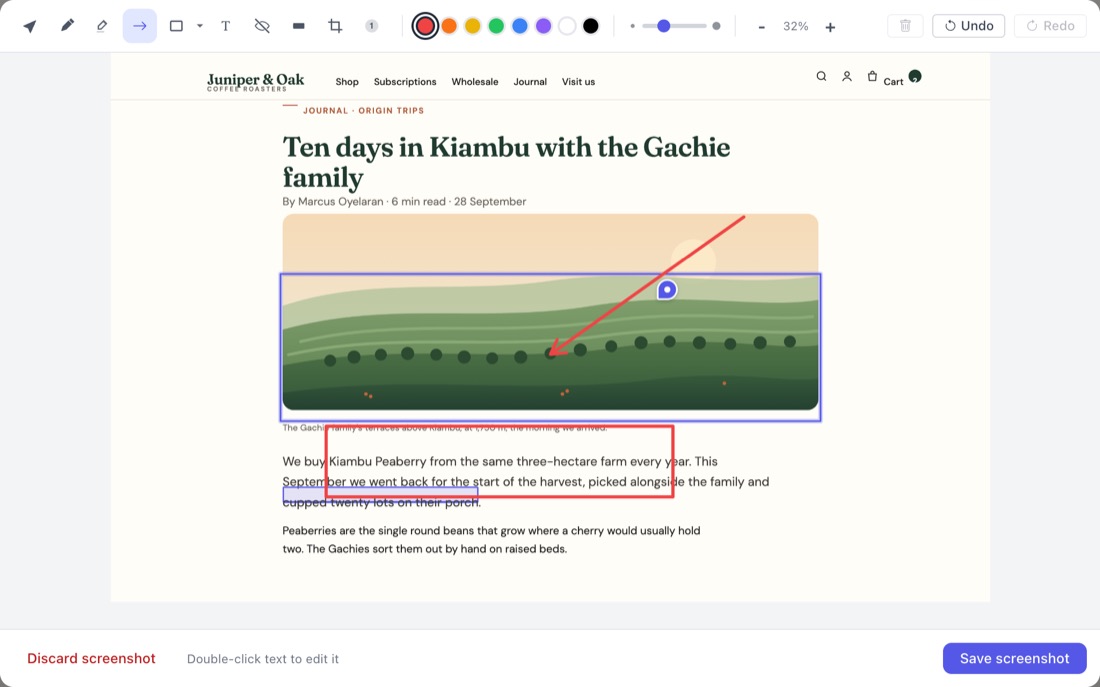

Screenshots, on every plan
Click Attach screenshot while you write a comment. StiqNote captures what's on your screen, hides its own toolbar and pins first, and outlines the element your comment is about.
Area comments come with a screenshot of the area on their own, taken before the form opens. It shows as a small chip in the form, with a pencil to mark it up and a cross to take it off. Click Attach screenshot to take a new one instead.
The annotator
Click Annotate to mark up a screenshot before you post it. The tools:
- Pen and Highlighter for quick marks.
- Arrow, and shapes: rectangle, ellipse, circle, diamond and line, outlined or filled.
- Text and Label (text on a solid background).
- Numbered callouts, for "1, 2, 3" feedback on one image.
- Blur and Redact, to hide customer names, emails or anything else private before it's shared.
- Crop, which you can adjust or remove later.
Pick a colour and a line thickness. Everything you draw can be selected, moved, restyled or deleted, and undo and redo cover every step. Each tool has a single-key shortcut (P for pen, A for arrow, B for blur, and so on).
Already posted it? Open the thread and click Annotate on the screenshot to mark it up again.
Attachments
Add files to a comment: a PDF with the right copy, a new logo, a spreadsheet of prices. Attachments are on every plan and count toward your storage.
Screen recordings Pro
When a screenshot isn't enough, record the tab. Click the record button in the comment form and pick:
- Record this tab, or
- Record with my voice, to talk through what you see.
Chrome asks which tab to share. A small bar shows the time, with Stop and Discard. Recordings stop on their own at 5 minutes and play right in the thread, even on sites with a strict security policy.
Recording is different from session replay. A recording is something you choose to make, with sound. A session replay is the last 3 minutes before a bug report, captured on its own.
Private by default
Screenshots, files and recordings are only visible to your team, and to guests on the sites they can see. They're stored on Cloudflare, served through links that expire after 24 hours. Files linked from a GitHub issue stay reachable while the thread is linked to it.
Questions
Does the screenshot include the whole page?
No, it captures what's visible in the window, like a normal screenshot. Scroll to what matters first.
How much can I store?
Each team has one pool that everyone in it shares: 100 MB for the whole team on Free, 2 GB per seat on Pro, and 5 GB per seat on Agency.
Is the recording sent anywhere while I record?
No. It's uploaded when you post the comment. If you discard it, nothing is sent.
Related features
Stop sending screenshots in Slack
Pin the feedback where it belongs. Free to start, with 14 days of Agency for your first team.