Integration Pro
Website feedback, as Trello cards
Feedback from the site becomes a card on the Trello board where your team plans the work. When the card reaches your Done list, or is archived, the pin on the page resolves.
On Pro and Agency. Try it free for 14 days, no card.
What goes into the card
- Name: the comment's first line. When the board has a label for the type (a "Bug" label, for example), the card gets it; otherwise the name starts with "Bug: ".
- Description: the comment, links to the pin in StiqNote and the replay, and the page and browser details.
- Screenshot and files: attached to the card.
- Logs: a line with the counts of errors and failed requests, and a link to the full log.
- Board and list: the default is the board you pick, in its first inbox-like list (you can pick another list). New cards go to the top.
- Members: the thread's assignee is added to the card when you've matched them to a Trello member, or a default assignee.
- Label: a
stiqnotelabel, so you can filter for everything that came from feedback. You can turn it off.
Status, both ways
Pick what resolving means under When a thread is resolved: move the card to a list you choose, archive it, or the default, which moves it to a list called Done and archives it when the board has none.
- Resolve the thread, and the card moves or is archived.
- Move the card to that list or archive it in Trello, and the thread resolves. Move it out again or restore it, and the thread reopens.
Comments, both ways
- StiqNote replies → Trello comments: posted as "Jane Smith via StiqNote". Trello has no app accounts, so they show under the person who connected Trello. Private replies never go.
- Trello comments → StiqNote: comments on the card come back to the pin as private notes. Your team sees them; clients don't, unless you choose to show them.
Set it up
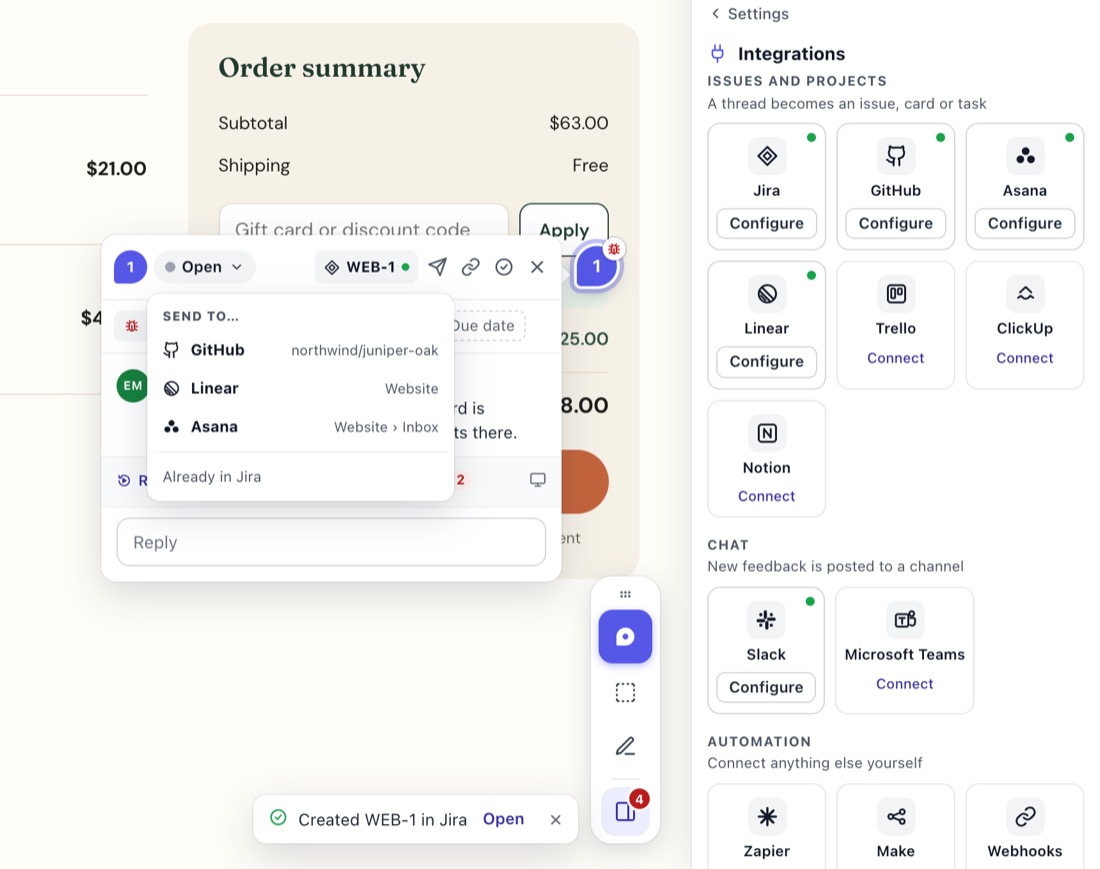
In the StiqNote sidebar, open Settings → Integrations and click Connect next to Trello.
Approve access in Trello.
Pick the default board and list. Each StiqNote project picks its own.
Choose Send threads: Ask each time, or Every new comment.
Match People to board members. Trello doesn't share members' email addresses, so pick each person once.
Open a thread and use Send to… to create a card, or Link to existing… to link a card that already exists.
Questions
Which plan do I need?
Pro or Agency.
Does Trello get private comments?
No. Private comments and private replies are never sent.
Is there a priority?
No. Trello cards have no priority field, so StiqNote doesn't set one.
One board per client?
Yes. Make a StiqNote project for each client, and pick a different board in each project's Integrations.
On Pro and Agency. Every integration comes with Pro: GitHub, Linear, Jira, Asana, ClickUp, Trello, Notion, Slack, Microsoft Teams, webhooks and the MCP server.
See pricingStop sending screenshots in Slack
Pin the feedback where it belongs. Free to start, with 14 days of Agency for your first team.